
To convert an image to an AI image, upload the picture to an image-to-image generator, write a prompt that says what must stay the same and what should change, and generate. The AI keeps the layout of your picture and redraws it in the style, light or setting you describe. On GenWorldAI this is the Image to Image page: one picture in, a prompt of up to 800 characters, 4 credits per result.
We tested the method on 2026-11-25 with five pictures, using the same settings as the Image to Image page. Each result below is the first and only picture its prompt produced, resized for the web, with the full prompt so you can reuse it.
How to convert an image to an AI image on GenWorldAI
- Sign in and open Image to Image. It is the second tab of the image generator, next to Text to Image.
- Upload one picture. JPG, PNG or WebP, up to 10 MB. Pick one with a clear main subject: the AI can only keep what it can see.
- Write the prompt. Up to 800 characters: the kind of transformation, what to keep, then the new style, setting or light (formula below).
- Click Generate Images. The button shows the cost, 4 credits. In our tests each picture took about two and a half minutes.
- Download the result from History. Downloads carry a GenWorldAI watermark until the account's first purchase of any plan or credit pack.
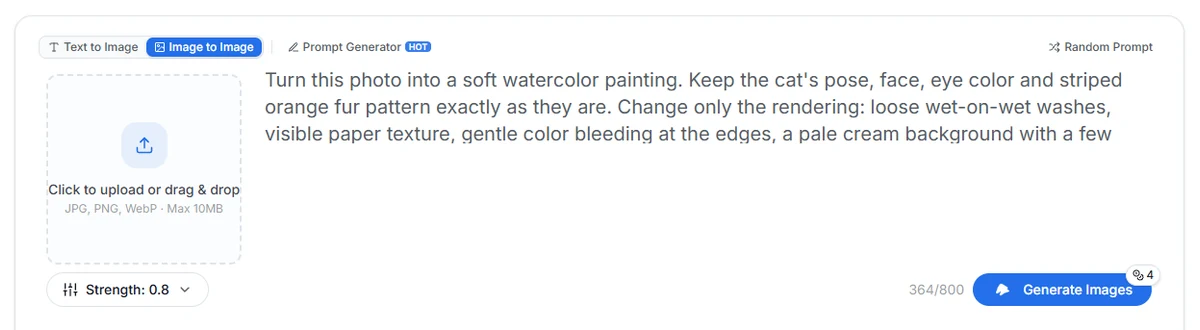
5 real image transformation AI examples, with prompts
Each pair shows the upload on the left and the AI result on the right. The uploads were square, wide or 4:3; every result came back at 1280 × 960.
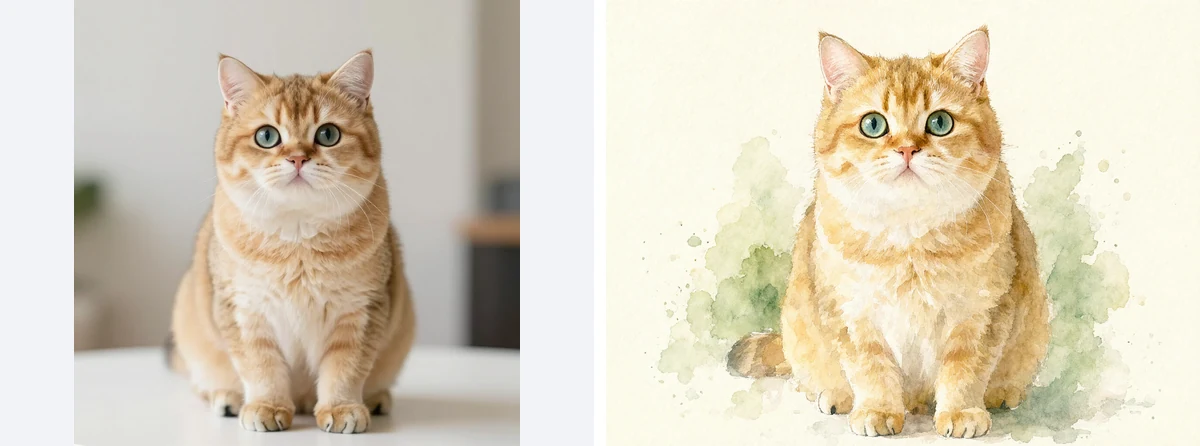
1. Turn a photo into AI art: cat to watercolor
A style change is the usual way to turn a photo into AI art. The prompt names what must survive and changes only how the picture is painted.
Turn this photo into a soft watercolor painting. Keep the cat's pose, face, eye color and striped orange fur pattern exactly as they are. Change only the rendering: loose wet-on-wet washes, visible paper texture, gentle color bleeding at the edges, a pale cream background with a few splashes of sage green. Soft natural daylight from the left. No text, no border.
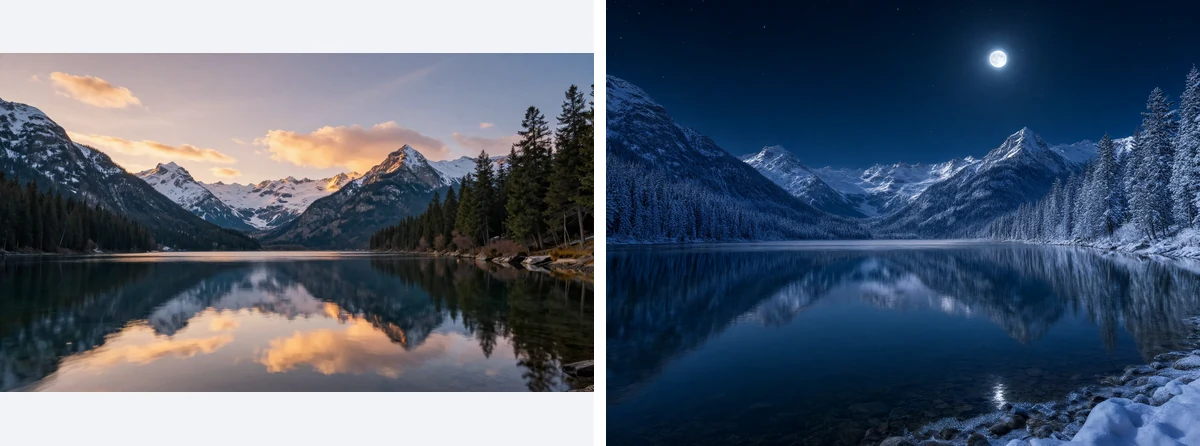
2. Change the season and light: sunset lake to winter night
Image transformation AI can also change the time of day and the weather while keeping the landmarks.
Change this mountain lake scene from a sunset to a clear winter night. Keep the same mountains, tree line, shoreline rocks and the mirror reflection on the water, in the same positions. Cover the peaks and pine trees with fresh snow, add thin ice and frost along the near shore, a deep blue night sky with a bright full moon and stars, and cool moonlight with silver highlights on the snow. Photorealistic, calm, long exposure feel.
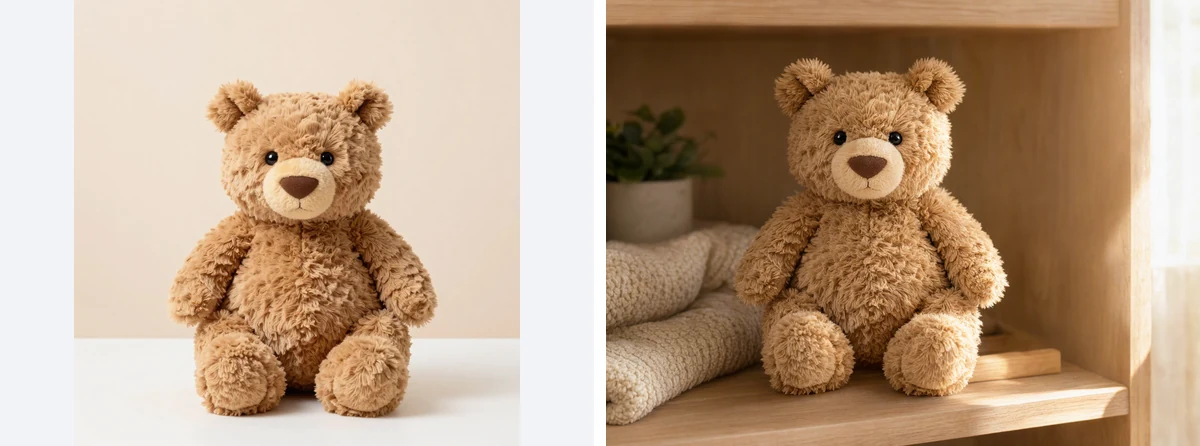
3. AI photo restyle for a product: plush bear on a shelf
For product pictures, keep the product and change the setting. The prompt lists the bear's features, then builds a scene around it.
Place this plush teddy bear in a new setting for a product photo. Keep the bear itself unchanged: same shape, fur texture, color, eyes and nose. Replace the plain background with a cozy bedroom shelf: a light wooden shelf, a folded knitted blanket beside the bear, a small potted plant, soft morning sunlight from a window on the right, warm tones, shallow depth of field. Photorealistic, clean, no text, no logos.
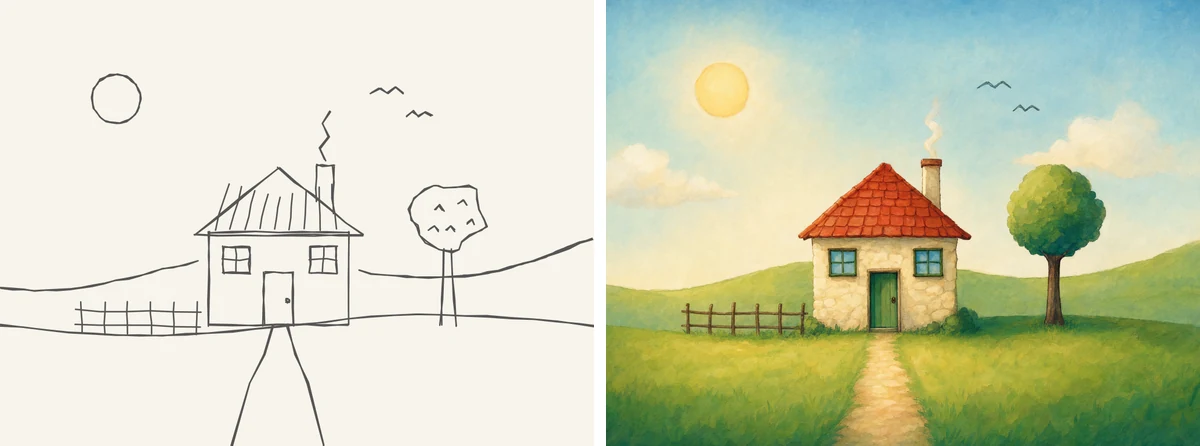
4. Sketch to finished illustration: pencil cottage
A rough drawing works as a layout. We drew this sketch ourselves and asked for color and a painting style with every element kept in place.
Turn this pencil sketch into a finished storybook illustration. Keep the layout of the sketch: the cottage in the center with its chimney, door and two windows, the fence on the left, the round tree on the right, the path, the sun and the two birds. Add color and texture: a red tiled roof, cream stone walls, a green door, rolling green hills, a blue sky with soft clouds, warm afternoon light. Gouache painting style, soft edges, cozy mood.
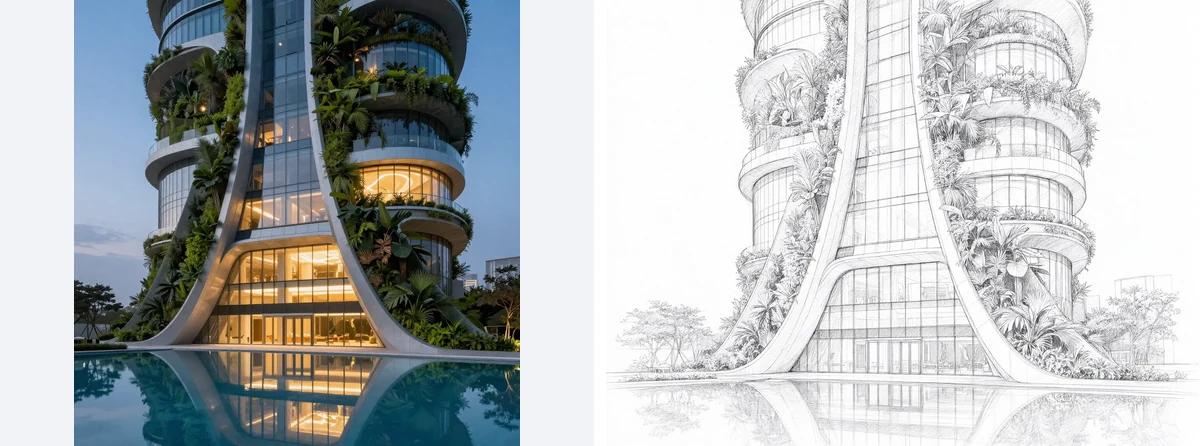
5. Photo to drawing: modern tower to ink sketch
It also runs the other way, from a photo to a drawing. The prompt spends its words on the drawing technique.
Convert this photo of a modern tower into an architect's ink and pencil sketch. Keep the building's shape, the curved white frames, the balconies, the plants and the reflection in the pool where they are. Remove all color: black ink lines on white sketch paper, light pencil hatching for shadows, a few loose construction lines, a clean white sky. No text, no signature.
How to write a prompt for an AI photo restyle
All five prompts follow the same order:
| Part | What to write | From example 1 |
|---|---|---|
| Transformation | One sentence naming the kind of change | Turn this photo into a soft watercolor painting |
| Keep | The things that must survive, by name | The cat's pose, face, eye color and striped orange fur pattern |
| Change | The new style, setting or season in concrete words | Loose wet-on-wet washes, visible paper texture, a pale cream background |
| Light and finish | Light source and direction, plus what to leave out | Soft natural daylight from the left. No text, no border. |
- Name what to keep. "Keep the subject" is vague; "keep the pose, the eye color and the striped fur" is a checklist. The named parts came through in all five tests, though not always in exactly the same place.
- Use a painter's or photographer's words. "Wet-on-wet washes, paper texture" for watercolor, "gouache, soft edges" for a storybook look, "ink lines, pencil hatching" for a drawing.
- Give light a source and a direction. "Soft morning sunlight from a window on the right" gave the bear a warm side light and a bright window edge.
- Change one big thing per run. For two changes, restyle first, then upload the result and change the light.
- Say what to leave out. End with "no text, no border, no logos". None of our five results had text or a border.
Stuck for style words? The Image Prompt Generator turns a short idea into a detailed prompt with lighting, color and style lines (2 credits). It is built for Text to Image, so copy those lines into the Change and Light parts and keep your own Keep line.
What works and what doesn't
In our tests, converting an image to an AI image worked well for a new art style on a clear subject (the cat, the tower), a new setting behind a product (the bear), a sketch turned into a finished picture, and a new season or time of day (the lake).
Plan for these limits:
- Every result is 4:3 landscape. All five came back at 1280 × 960, whatever the shape or size of the upload. A square picture is redrawn wider and a wide one is recomposed. For a square or vertical picture, leave space around the subject and crop the result.
- The whole picture is redrawn. There is no brush or mask, so parts you didn't name can shift: the lake's clouds disappeared, the shoreline rocks moved, and the sketch's roof changed shape. For an exact edit to one small area, use a photo editor.
- One picture per run. Image to Image can't merge two photos, such as a product and a room. Describe the second one in words instead.
- Big changes are a new picture. If almost nothing of the original should remain, use Text to Image: 2 credits instead of 4, prompts up to 1,000 characters, and a choice of 1:1, 4:3, 3:4, 16:9 or 9:16.
Turn the result into a video
A converted picture can be the first frame of a short clip. Upload it to Image to Video and describe the motion: snow drifting over the frozen lake, or morning light moving across the bear's shelf. Clips are 4, 8 or 12 seconds at 480p, 720p or 1080p, from 20 credits.
FAQ
Can I convert an image to an AI image for free?
New accounts get 2 free credits. That covers one picture in Text to Image or one prompt from the Image Prompt Generator, but a conversion in Image to Image costs 4 credits, so it needs a plan or a credit pack. One-time packs start at $9.99 for 200 credits, enough for 50 conversions, and pack credits never expire.
What size and shape is the result?
A 1280 × 960 picture in 4:3 landscape, whatever you upload. A square or vertical picture is reframed to fit, so keep the subject away from the edges.
Will the AI keep my subject recognizable?
It keeps what you name. List the features that matter (pose, eye color, fur pattern, the shape of a product) in the Keep part of the prompt. Anything you leave out is free to change.
What is the difference between Image to Image and Text to Image?
Image to Image starts from your picture and keeps its layout; Text to Image draws a new picture from words alone. You can combine them: make a base in Text to Image, download it, then restyle it in Image to Image.
Is there a watermark on the result?
Downloads carry a GenWorldAI watermark until the account makes its first purchase of any plan or credit pack. After that, downloads have no watermark.
Start converting your images
To convert an image to an AI image, pick one picture and write the four parts: the transformation, what to keep, what to change, and the light. Then open Image to Image, upload it and generate. No picture yet? Make one in Text to Image first and restyle it from there.